

Internet users are quite restless and never wait if your website is too heavy to load in the normal internet connection. Web site optimization is an important phase that decides the productivity of the websites. So never frustrate your users with slow loading time and complicated and confusing navigations.
Recently i optimized this blog after so many tricks and tips like logics to load the header files, javascripts compression , hacking wordpress plugins , compressing and optimizing the custom style sheets. Through this post i would like to convey all the important points that i implemented on the honeytechblog which helps in optimizing its loading times. You can use this free website performance tool for web page speed analysis and compare the loading time of your blogs with honeytechblog.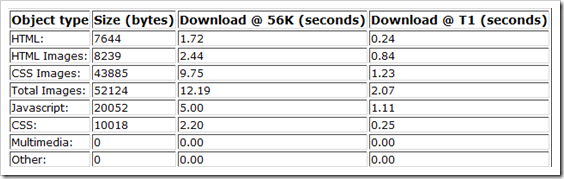
If your blog is not well optimized then the question is how to optimize the websites?
Their are many ways to enhance the performance of the website like these top 10 way to speed up your website, few of the experimented process apart from 20 easy ways for increasing website traffic are described as follows:
1.I checked for the use of heavy files on the home pages and figure out the objects that sucks the loading time. As a results i came to know that featured content gallery is taking too much time to load for the new users. (You can leave this option in case feature contents are important feature for your blog)
2.I checked for the number of HTTP requests from the home page. I have only single page without any iframe so this option looks fine on my homepage.
3.I checked for all the images and try to avoid the use of too many images on the homepage. This can be done by using following methods:
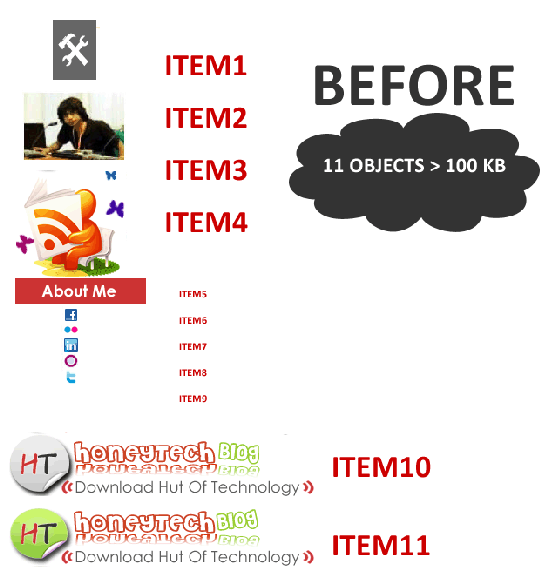
- Use of CSS sprites.
- Using images from different hosts or sub domains. For example media.yoursite.com.
- Initially their were so many images like logos, social icons, profile images, rss buttons and collectively they consume more than 100KB but after the implementation of CSS Sprites it optimized to only 31KB.

Note: I’ll cover up the CSS Sprites optimization in the up coming posts and you can also check few ways to improve your web performance using CSS-Sprites.
4.Try to avoid too many css calls on the homepage. For example wordpress plugins require large resources which calls useless css and javascripts files on the homepage. Try to avoid <?php wp_head(); ?> on the home page and use alternative methods like i used on honeytechblog. The method is described as follows:
- Go to wordpress theme directory located at wp-content/themes/yourtheme and open index.php file
- Find the tag <?php get_header(); ?> and replace it with below mention code
<?php
if ($_SERVER['REQUEST_URI'] != "/")
{
get_header();
}
else
{
include ("header-home.php");
}
?>
Now the above code require a new header file which doesn’t call the <?php wp_head(); ?> on the home page.
How the use of two header files works:
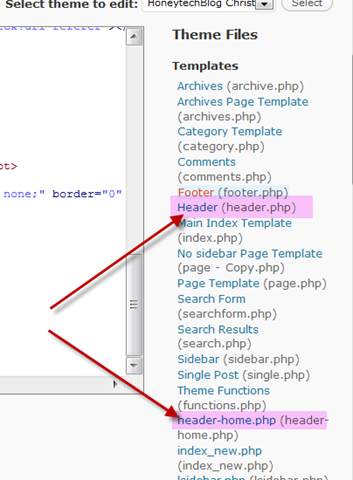 When users view the home page then it calls the header-home.php and on the other pages it will call the default header files together with your plugins.
Note: After the implementation of this trick my loading time decreased down to more than 300%. (As i used so many plugins and files on the home page but i cut it down to few specific only. I’ll cover up the must have wordpress plugins in the upcoming posts.)
How to create two header files and get them working with your theme
Follow the following process to create two homepage files:
- Go to your theme directory located at wp-contents/themes/yourtheme and file the file named header.php
- Copy all the contents of the header.php and paste them into a new file named as header-home.php
- Now fined the code name <?php wp_head(); ?> into your header-home.php and delete it.
- Now your alternate header file is ready to use but this header file is manual and you need to include few important things like meta tags and descriptions generated by “All in one SEO Plugin”. So in next step you need to find the dynamic meta contents.
- Open your blog in the browser and then view its source. Just search for codes between <!– all in one seo pack 1.5.1 –> and <!– /all in one seo pack –>. It generally includes the meta tags like <meta name=”description” content=”” /> <meta name=”keywords” content=”” /> <link rel=”canonical” href=”yourdomainname.com” />
- Now your new header file is ready to test. Now you have options to include this header-home.php file into your theme directory or in root directory of the blog. I choose the option of root directory as its easy to edit it for future uses.
- As an backup option upload the header-home.php file into root directory i.e yourblog/header-home.php and also into the theme directory ie wp-contents/theme/header-home.php.
- Now you are completely ready to run the blog. Just don’t forget to change the index.php file described in the above mention process.
Note: You will realized that your loading time is enhanced as now their isn’t any useless calls of the plugins which is not required on the home page. For example script generated by cforms , sociable and other plugins. (if you used them only on single pages) 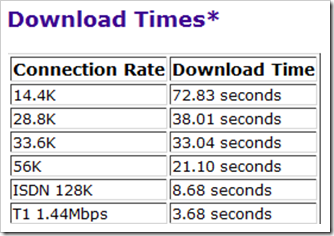
5.Try to avoid excess external scripts.
While checking the page source i found useless script like wp-includes/js/jquery/jquery.js so i removed it using above mention method of two header files.
6.Try to avoid use of multimedia files on the home page. Multimedia files like heavy flash and video require too much bandwidth and loading time. As discussed above i use to have the featured content gallery on the home page but i removed it while going through the optimization process. It requires more than 5 big image as an article image and more than 5 thumbnail images so after the removal it reduced the page from by more than150 Kb.
7.Shift all the media files, css and javascripts into another subdomain. Shifting css files is very simple piece of cake. Follow these steps:
- Create a subdomain where you need to put these CSS files. For example i create media.honeytechblog.com
- Search for style.css used in your wordpress themes i.e yourblog/wp-contents/themes/yourtheme/style.css
- Search for images used in the style.css. Generally these images includes in the same theme folder i.e yourblog/wp-contents/themes/yourtheme/images
- Copy the style.css and the images folder and shift then to desired subdomain. For example a)I shift the css files into media.honeytechblog.com/s1/style.css and images b)I shift the images into media.honeytechblog.com/s1/images folder. Note: I shift the files into the s1 as a subfolder to differentiate the versions for future use. It is not necessary but things will be neat for future use.
Note: I try to keep this post short and simple but in case you have any issues then feel free to comments and i’ll try to resolve it. In coming days their will be more posts on the wordpress customizations and optimizations so its better if you subscribed to our official RSS.
Comments
37 responses to “How to optimize website loading time and performance”